
Multi Attach EFS
Amazon Elastic File System (EFS) is a fully managed, scalable file storage service designed to be shared across multiple compute resources including Amazon EC2, Amazon ECS, Amazon EKS, AWS Lambda, and AWS Fargate. Unlike Amazon EBS, which is typically attached to a single instance (with limited multi-attach support), EFS is built from the ground up to support multiple EC2 instances mounting the same filesystem simultaneously.
In this article, i’ll demonstrate how we can mount EFS to multiple instances.
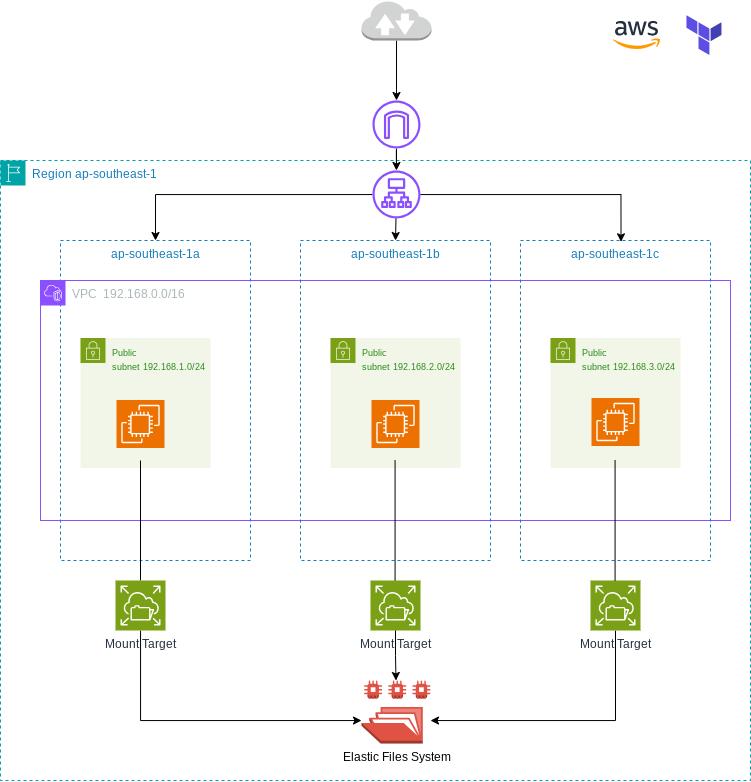
Architecture Overview
The following architecture is used to mount EFS to multiple EC2.
Prerequisites
- VPC, Three subnet (In here i will use public subnet), 1 IGW, 1 RTB
- 3 Security Group. ALB SG (Allow HTTP, HTTPS), EC2 SG (Allow HTTP from ALB SG, SSH), EFS SG (Allow NFS from EC2 SG)
- Three EC2 Instance in different AZ (You can provision only two also)
- 1 EFS Volume
Terraform Implementation
VPC, Subnet IGW, and RTB
# ====================================================================================================
# Multi-Attaching Elastic File System (EFS) Volumes to EC2 with Application Load Balancers
# ====================================================================================================

provider "aws" {
  region  = "ap-southeast-1"
  profile = "default"

  default_tags {
    tags = {
      Owner   = "nugroho-L1"
      Project = "Testing"
    }
  }
}


# ====================================================================================================
# VPC and Network Infra
# ====================================================================================================

resource "aws_vpc" "main" {
  cidr_block           = "192.168.0.0/16"
  instance_tenancy     = "default"
  enable_dns_hostnames = true

  tags = {
    Name = "nugroho-vpc"
  }
}

# Subnets
resource "aws_subnet" "a" {
  vpc_id            = aws_vpc.main.id
  cidr_block        = "192.168.1.0/24"
  availability_zone = "ap-southeast-1a"

  tags = {
    Name = "Public-Subnet-A-nugroho"
  }
}

resource "aws_subnet" "b" {
  vpc_id            = aws_vpc.main.id
  cidr_block        = "192.168.2.0/24"
  availability_zone = "ap-southeast-1b"

  tags = {
    Name = "Public-Subnet-B-nugroho"
  }
}

resource "aws_subnet" "c" {
  vpc_id            = aws_vpc.main.id
  cidr_block        = "192.168.3.0/24"
  availability_zone = "ap-southeast-1c"

  tags = {
    Name = "Public-Subnet-C-nugroho"
  }
}

# Internet Gateway
resource "aws_internet_gateway" "gw" {
  vpc_id = aws_vpc.main.id

  tags = {
    Name = "main-igw-nugroho"
  }
}

# Route Table
resource "aws_route_table" "main" {
  vpc_id = aws_vpc.main.id

  route {
    cidr_block = "0.0.0.0/0" # Route to all external IPs
    gateway_id = aws_internet_gateway.gw.id
  }

  tags = {
    Name = "main-route-table-nugroho"
  }
}

# Route Table Associations
resource "aws_route_table_association" "a" {
  subnet_id      = aws_subnet.a.id
  route_table_id = aws_route_table.main.id
}

resource "aws_route_table_association" "b" {
  subnet_id      = aws_subnet.b.id
  route_table_id = aws_route_table.main.id
}

resource "aws_route_table_association" "c" {
  subnet_id      = aws_subnet.c.id
  route_table_id = aws_route_table.main.id
}
Security Group
# ====================================================================================================
# Security Groups
# ====================================================================================================

# Security Group for ALB
resource "aws_security_group" "alb-sec-group" {
  name        = "allow_http_https"
  description = "Allow HTTP and HTTPS inbound traffic from anywhere"
  vpc_id      = aws_vpc.main.id

  tags = {
    Name = "alb-sec-group-nugroho"
  }
}

# Allow inbound HTTP traffic (port 80) from anywhere
resource "aws_security_group_rule" "allow_http_alb" {
  type              = "ingress"
  from_port         = 80
  to_port           = 80
  protocol          = "tcp"
  security_group_id = aws_security_group.alb-sec-group.id
  cidr_blocks       = ["0.0.0.0/0"]
}

# Allow inbound HTTPS traffic (port 443) from anywhere
resource "aws_security_group_rule" "allow_https_alb" {
  type              = "ingress"
  from_port         = 443
  to_port           = 443
  protocol          = "tcp"
  security_group_id = aws_security_group.alb-sec-group.id
  cidr_blocks       = ["0.0.0.0/0"]
}

# Allow all outbound traffic
resource "aws_security_group_rule" "allow_all_outbound_alb" {
  type              = "egress"
  from_port         = 0
  to_port           = 0
  protocol          = "-1"
  security_group_id = aws_security_group.alb-sec-group.id
  cidr_blocks       = ["0.0.0.0/0"]
}


# Security Group for EC2 or Target Group
resource "aws_security_group" "ec2-sec-group" {
  name        = "allow_from-alb"
  description = "Allow HTTP traffic from ALB and SSH from specific IP"
  vpc_id      = aws_vpc.main.id

  tags = {
    Name = "ec2-sec-group-nugroho"
  }
}

# Allow inbound HTTP traffic (port 80) from ALB only
resource "aws_security_group_rule" "allow_http_from_alb" {
  type                     = "ingress"
  from_port                = 80
  to_port                  = 80
  protocol                 = "tcp"
  security_group_id        = aws_security_group.ec2-sec-group.id
  source_security_group_id = aws_security_group.alb-sec-group.id
}

# Allow inbound SSH traffic (port 22) from a specific IP
resource "aws_security_group_rule" "allow_ssh" {
  type              = "ingress"
  from_port         = 22
  to_port           = 22
  protocol          = "tcp"
  security_group_id = aws_security_group.ec2-sec-group.id
  cidr_blocks       = ["0.0.0.0/0"] # Replace with your actual public IP
}

# Allow all outbound traffic
resource "aws_security_group_rule" "allow_all_outbound_ec2" {
  type              = "egress"
  from_port         = 0
  to_port           = 0
  protocol          = "-1"
  security_group_id = aws_security_group.ec2-sec-group.id
  cidr_blocks       = ["0.0.0.0/0"]
}


# Security Group for EFS
resource "aws_security_group" "efs-sec-group" {
  name        = "allow_from-ec2"
  description = "Allow TCP traffic on port 2049 from EC2 instances"
  vpc_id      = aws_vpc.main.id

  tags = {
    Name = "efs-sec-group-nugroho"
  }
}

# Allow inbound 2049 from EC2 security group only
resource "aws_security_group_rule" "allow_nfs_from_ec2" {
  type                     = "ingress"
  from_port                = 2049
  to_port                  = 2049
  protocol                 = "tcp"
  security_group_id        = aws_security_group.efs-sec-group.id
  source_security_group_id = aws_security_group.ec2-sec-group.id
}

# Allow all outbound traffic
resource "aws_security_group_rule" "allow_all_outbound_efs" {
  type              = "egress"
  from_port         = 0
  to_port           = 0
  protocol          = "-1"
  security_group_id = aws_security_group.efs-sec-group.id
  cidr_blocks       = ["0.0.0.0/0"]
}
EC2 Instances
# ====================================================================================================
# Launch an EC2 Instance
# ====================================================================================================

# Get latest Ubuntu AMI
data "aws_ami" "ubuntu" {
  most_recent = true
  owners      = ["099720109477"] # The official Ubuntu AMI owner ID, if the owner using amazon, then it can't connect.

  filter {
    name   = "name"
    values = ["ubuntu/images/hvm-ssd/ubuntu-*-amd64-server-*"]
  }
}

# Define a map of subnets and availability zones dynamically using locals
locals {
  subnets = {
    a = aws_subnet.a.id
    b = aws_subnet.b.id
    c = aws_subnet.c.id
  }
}

# Create the Ubuntu EC2 Web server
resource "aws_instance" "web" {
  depends_on                  = [aws_efs_file_system.efs_file_system]
  for_each                    = local.subnets
  ami                         = data.aws_ami.ubuntu.id
  instance_type               = "t3.micro"
  key_name                    = "nugroho-msikp"
  subnet_id                   = each.value
  associate_public_ip_address = true
  vpc_security_group_ids      = [aws_security_group.ec2-sec-group.id]

  tags = {
    Name = "web-server-apache-${each.key}-nugroho"
  }

  user_data = <<-EOF
  #!/bin/bash
  sudo apt-get update -y
  sudo apt-get install apache2 -y
  sudo systemctl start apache2
  sudo systemctl enable apache2

  sudo apt-get install -y amazon-efs-utils

  # Create the directory for EFS mount
  sudo mkdir /efs

  # Mount the EFS
  sudo mount -t efs -o tls ${aws_efs_file_system.efs_file_system.id}:/ /efs

  # Add EFS entry to /etc/fstab for auto-mount on reboot
  echo "${aws_efs_file_system.efs_file_system.id}:/ /mnt/efs efs _netdev,tls 0 0" | sudo tee -a /etc/fstab

  # Get EC2 metadata
  instanceId=$(curl http://169.254.169.254/latest/meta-data/instance-id)
  instanceAZ=$(curl http://169.254.169.254/latest/meta-data/placement/availability-zone)
  pubHostName=$(curl http://169.254.169.254/latest/meta-data/public-hostname)
  pubIPv4=$(curl http://169.254.169.254/latest/meta-data/public-ipv4)
  privHostName=$(curl http://169.254.169.254/latest/meta-data/local-hostname)
  privIPv4=$(curl http://169.254.169.254/latest/meta-data/local-ipv4)

  # Output instance metadata and EFS information
  echo "<font face = 'Verdana' size = '5'>"                               > /var/www/html/index.html
  echo "<center><h1>AWS Ubuntu VM Deployed with Terraform</h1></center>"   >> /var/www/html/index.html
  echo "<center> <b>EC2 Instance Metadata</b> </center>"                  >> /var/www/html/index.html
  echo "<center> <b>Instance ID:</b> $instanceId </center>"                      >> /var/www/html/index.html
  echo "<center> <b>AWS Availability Zone:</b> $instanceAZ </center>"             >> /var/www/html/index.html
  echo "<center> <b>Public Hostname:</b> $pubHostName </center>"                 >> /var/www/html/index.html
  echo "<center> <b>Public IPv4:</b> $pubIPv4 </center>"                         >> /var/www/html/index.html
  echo "<center> <b>Private Hostname:</b> $privHostName </center>"               >> /var/www/html/index.html
  echo "<center> <b>Private IPv4:</b> $privIPv4 </center>"                       >> /var/www/html/index.html
  echo "<center><b>EFS File System ID:</b> ${aws_efs_file_system.efs_file_system.id}</center>" >> /var/www/html/index.html
  echo "</font>"                                                          >> /var/www/html/index.html
  EOF


}
Application Load Balancer and Target Group
# ====================================================================================================
# Application Load Balancer
# ====================================================================================================
resource "aws_lb" "aws-application_load_balancer" {
  name                       = "app-load-balancer-nugroho"
  internal                   = false
  load_balancer_type         = "application"
  security_groups            = [aws_security_group.alb-sec-group.id]
  subnets                    = values(local.subnets) # All subnets
  enable_deletion_protection = false

  tags = {
    Name = "Application-Load-Balancer-nugroho"
  }
}


# ====================================================================================================
# Target Group
# ====================================================================================================

resource "aws_lb_target_group" "app_tg" {
  name        = "app-target-group-nugroho"
  port        = 80     # Target Group port
  protocol    = "HTTP" # Protocol to communicate with targets
  vpc_id      = aws_vpc.main.id
  target_type = "instance" # Target type (can be "ip" or "lambda" as well)

  health_check {
    enabled             = true
    interval            = 30 # Check every 30 seconds
    path                = "/"
    timeout             = 5
    matcher             = 200
    healthy_threshold   = 5 # Mark healthy after 2 successes
    unhealthy_threshold = 5 # Mark unhealthy after 2 failures
  }
  lifecycle {
    create_before_destroy = true
  }
}

# Attach EC2 instances to the Target Group
resource "aws_lb_target_group_attachment" "app_tg_attachment" {
  for_each = aws_instance.web # Loop over all instances

  target_group_arn = aws_lb_target_group.app_tg.arn
  target_id        = each.value.id # Attach each instance by ID
  port             = 80            # Port for the target
}


# ====================================================================================================
# Listener
# ====================================================================================================

resource "aws_lb_listener" "http_listener" {
  load_balancer_arn = aws_lb.aws-application_load_balancer.id
  port              = 80 # Listener port
  protocol          = "HTTP"

  default_action {
    type             = "forward"
    target_group_arn = aws_lb_target_group.app_tg.arn
  }
}
Elastic File System
# ====================================================================================================
# Configuring Elastic File System (EFS)
# ====================================================================================================

# Create EFS
resource "aws_efs_file_system" "efs_file_system" {
  creation_token   = "efs-test"
  performance_mode = "generalPurpose"
  throughput_mode  = "bursting"
  lifecycle_policy {
    transition_to_ia = "AFTER_30_DAYS"
  }
}

# Create EFS Mount Targets for each subnet
resource "aws_efs_mount_target" "mount_targets" {
  count           = 3
  file_system_id  = aws_efs_file_system.efs_file_system.id
  subnet_id       = [aws_subnet.a.id, aws_subnet.b.id, aws_subnet.c.id][count.index] # Mount target per subnet
  security_groups = [aws_security_group.efs-sec-group.id]
}
Outputs
# ====================================================================================================
# Outputs
# ====================================================================================================
# Output the DNS of ALB
output "alb_dns_name" {
  value       = aws_lb.aws-application_load_balancer.dns_name
  description = "DNS name of the Application Load Balancer"
}

# Output public IPs of all EC2 instances
output "instance_public_ips" {
  value = {
    for key, instance in aws_instance.web : key => instance.public_ip
  }
  description = "Public IPs of the EC2 instances"
}

# Output private IPs of all EC2 instances
output "instance_private_ips" {
  value = {
    for key, instance in aws_instance.web : key => instance.private_ip
  }
  description = "Private IPs of the EC2 instances"
}
Test Create File
If you access the EC2 and create a file in one of the EC2. And then, try acessing the file in another ec2, you’ll find the same file.
Common Errors and Troubleshooting
Can’t access the browser
If you can’t access the instance in the browser, please check the security group that you use, make sure that the security group allow inbound HTTP/HTTPS from anywhere.
AttachmentLimitExceeded error
Btw there are number of limit when attach ebs volume to the instance, it depends on the instance type.
References:
- https://docs.aws.amazon.com/AWSEC2/latest/UserGuide/volume_limits.html